Account, Privacy & Data
Your profile and settings, who can see what, and deleting your data or account.
Your profile
Your profile shows your username, your rides, the trails you've raced, your vehicles and the relics you've equipped. Other riders can open it from leaderboards, the feed and the rider search.
Your profile picture is made for you: the first two letters of your username on a colored background. There's no photo upload, so change your username if you want different initials.
Everything else on your profile is up to you. You can add a short bio and links to your Instagram, TikTok, YouTube and website. These are all optional.
Changing your settings
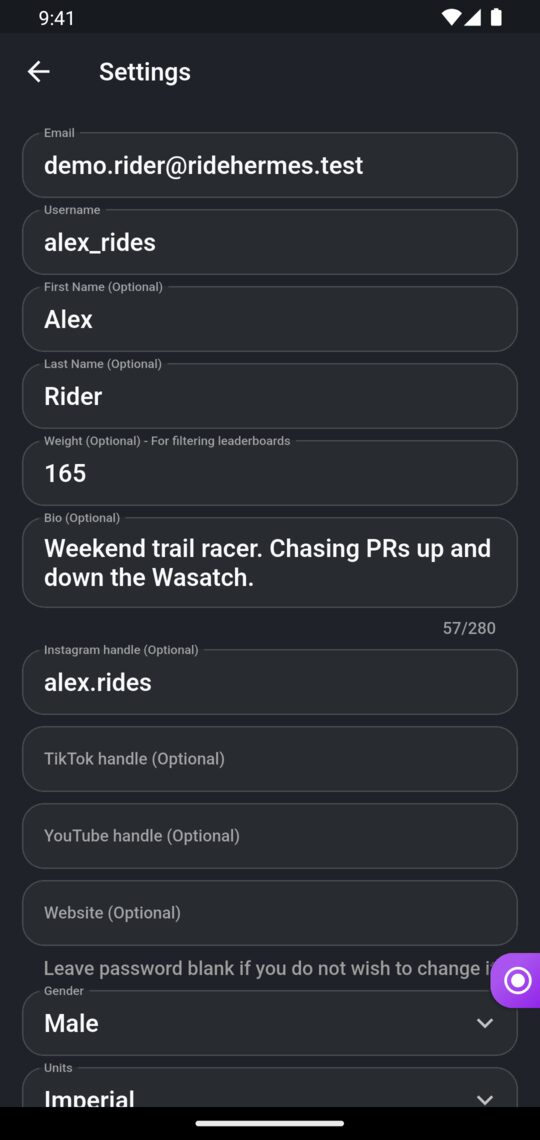
In the app
- Open the side menu.
- Under Account, tap Settings.
- Change any of the fields, then tap Save.
In the app you can change your Email, Username, first and last name, weight, bio, social handles, website, Gender, Units (Imperial or Metric) and password.
On the website
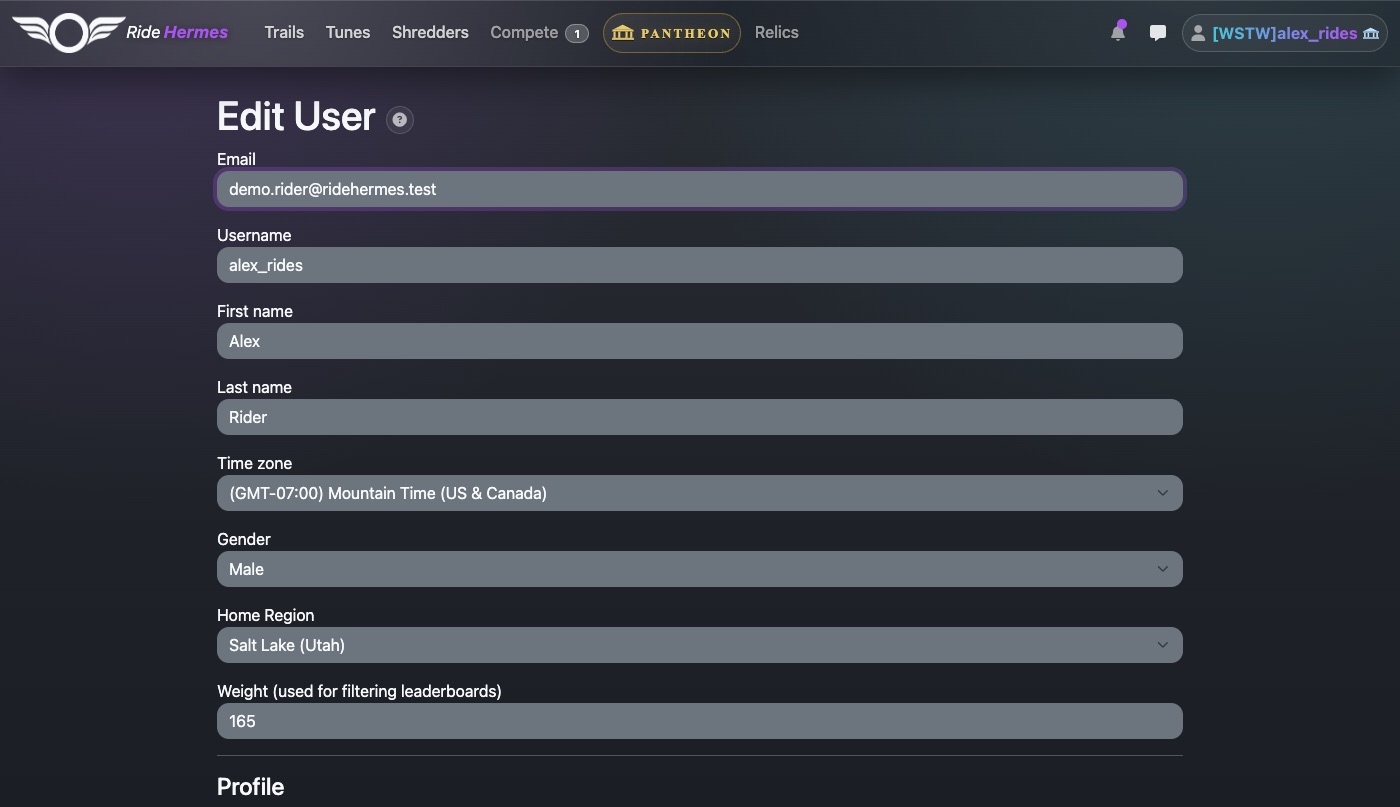
- Log in and open the menu with your username in the top-right corner.
- Choose Settings.
- Make your changes.
- Type your password into Current password to confirm, then click Update.
The website also lets you set your Time zone and Home Region. Units are only on the app.
Username rules
- 4 to 30 characters.
- Start with a letter.
- Letters, numbers, dashes (-), underscores (_) and dots (.) only.
Why gender and weight matter
Gender and weight are optional. They're only used to let riders filter leaderboards, so you can compare yourself with riders like you.
- Gender lets a trail or season leaderboard be filtered to male or female riders.
- Weight puts you in a weight class, so a leaderboard can be filtered to one class.
If you leave them blank you still appear on every leaderboard. You just won't show up when someone filters by gender or weight class.
More about leaderboard filters: Trails & Leaderboards and Seasons, Leagues & The Underground.
Password and email
Changing your password
In the app, open Settings and fill in New Password and New Password Confirmation. Leave both blank to keep your current password. On the website, fill in New password and New password confirmation, plus your Current password.
Forgot your password?
- In the app, type your email on the login screen and tap Forgot Password. On the website, click Forgot your password? on the Log in page, enter your email and click Send me reset password instructions.
- Check your email. The reset link usually arrives within a few minutes. Look in your spam folder too.
- Follow the link and choose a new password. Use it on both the app and the website.
You'll see the same message whether or not the email has an account, so if nothing arrives, check you typed the email you signed up with.
Changing your email
Change the Email field in Settings. You log in with your email, so use the new one next time.
Notifications
The app sends push notifications when someone follows you, likes or comments on your rides, sends you a message, invites you to a squad or league, or when you receive a reward.
There are no per-type notification settings in Ride Hermes. To turn push notifications off (or back on), change the notification settings for Ride Hermes in your phone's settings.
Your notifications are also listed in the app's Notifications tab, and under the bell icon at the top of the website.
Who can see what
| What | Who can see it |
|---|---|
| Your profile, username, bio and social links | Anyone, including people who aren't signed in. |
| Your rides and trail times | Anyone, unless you hide the ride. |
| A hidden ride | Hidden from other riders. It's taken off your profile and feeds, and its times don't count on leaderboards. |
| Your tunes | Anyone, unless you mark the tune private. |
| Your gender and weight class | Riders viewing season leaderboards, as tags next to your name. |
| Your messages | Only the riders in the conversation. |
Hiding a ride
Open the ride, then edit it. In the app, tap the ⋮ menu and choose Edit. On the website, click Edit Ride. Tick Hide and save. Untick it to show the ride again. Its times go back on the leaderboards.
You can also hide a single trail time on the website: on the ride page, click Edit next to the trail, tick Hide and save.
Private tunes
See Tunes & Vehicles for making a tune private.
Your location
The app only collects your location while you're recording a ride, or when you move the map to where you are. You can change location access for Ride Hermes at any time in your phone's settings, but the app needs it to record rides.
Deleting your account
You can only delete your account in the mobile app.
- Open the side menu.
- Under Account, tap Settings.
- Scroll to the bottom and tap the red Delete Account button.
- Type delete in the box.
- Tap Delete.
What gets deleted
- Your profile, settings and login.
- Your trail times, comments, follows, vehicles, tunes, squad and league memberships, and notifications.
- Your relics, credits and membership. Unused credits are lost.
Rides you recorded and trails you created stay on Ride Hermes, so other riders' trails and leaderboards keep working. They're no longer linked to you or shown under your name. To have those removed too, email support@ridehermes.app before or after you delete your account.
Deleting an account can't be undone.
Deleting your data without closing your account
You can delete single rides yourself. See Recording Rides. For anything else, email support@ridehermes.app from the address on your account and tell us what you'd like removed.
The Data Deletion page has the same steps in a short form you can share.