Following, Feed & Messages
Follow other riders, see their rides in your feed, like and comment, and send messages.
Finding riders
You can look up any rider by name or username, then open their profile to follow them or send a message.
In the app
- Open the side menu.
- Under Community, tap Shredder Directory.
- Tap the search icon at the left of the chips, then type in the Search shredders box. Results appear as soon as you stop typing.
The other chips, Overall, Trails Created, Unique Trails, Trail Attempts and Rides, rank riders and are a good way to find active people near the top. Each row shows how many followers the rider has and a Follow button. Tap a rider's card to open their profile.
On the website
Click Shredders in the top menu, choose the Search tab and search by name, handle or username. You can also go straight to Shredders.
For more about the Shredders rankings, see Shredders & Rider Rating.
Profiles
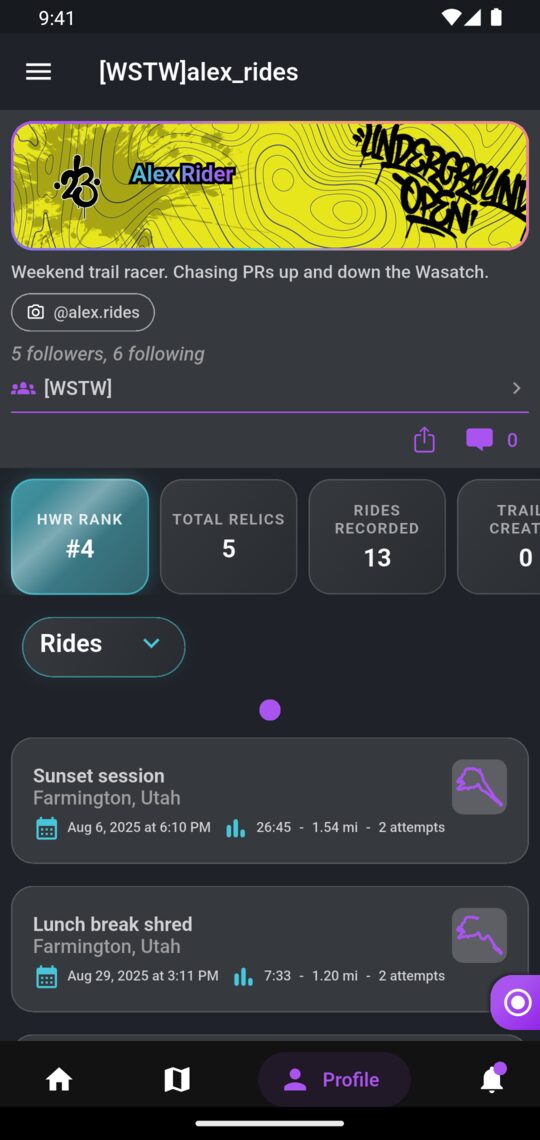
A rider's profile shows who they are and what they've been riding:
- Their banner, badge and name, plus their squad if they're in one.
- Their bio and social links (Instagram, TikTok, YouTube, website), if they've added them.
- How many followers they have and how many riders they follow.
- A stats row: HWR Rank, then rides, trails created, unique attempts and total attempts. The app also shows Total Relics.
- Their rides, trails, banners and badges. The app also lists their tunes and vehicles.
- Comments other riders have left on the profile.
The website also shows a Trophy Case with how many trails they've finished 1st, 2nd and 3rd on, their active seasons and season honors, and their leagues and squads.
In the app, your own profile is the Profile tab. To change your name, bio, social links and other details, open the side menu and tap Settings. See Account, Privacy & Data.
Following and followers
Follow or unfollow a rider
- Open their profile and tap Follow. The button changes to Unfollow so you can undo it.
- In the app you can also follow riders straight from the Shredder Directory, the Likes list, or a followers list.
You need to be signed in to follow anyone. The rider gets a notification that you started following them.
See who follows you
In the app, tap the followers line on a profile (for example "12 followers, 30 following"). Switch between Followers and Following at the top of the list.
Your feed
In the app, the Home tab is your feed. It shows rides and newly created trails from you and the riders you follow, newest first. Pull down to refresh, and scroll down to load more.
- A ride card shows the ride's title, where and when it was ridden, and up to three of its trail attempts, best first. Tap More Attempts to see the rest, or View Ride to open it.
- A trail card shows a new trail someone has created. Tap View Trail to open it.
- Each card also has share, like and comment buttons.
Hidden rides never appear in anyone's feed.
Likes and comments
| You can | On |
|---|---|
| Like | Rides, trails, tunes, comments and messages |
| Comment | Rides, trails, seasons and rider profiles |
In the app
- Tap the heart to like something, and tap it again to remove your like.
- Press and hold the heart to see the Likes list of who liked it.
- Tap the speech bubble to open Comments, type in Add comment and tap send.
On the website
Open a ride, trail, season or profile, go to its Comments section, type your comment and click Comment. The like button shows how many likes something has. Click it to like or unlike.
The owner gets a notification when you like or comment on their ride, trail or profile. A comment on a season notifies the members of that season's league.
Messages
Start a conversation
- Open the rider's profile.
- Tap Message. If you've messaged them before, your existing conversation opens.
Read and reply
- In the app, tap the speech-bubble icon at the top of the Home tab to open Messages. A dot on the icon means you have unread messages.
- On the website, click the message icon in the top bar. Unread conversations are shown in bold.
- Open a conversation, type your message and send it (the Send button on the website). You can like individual messages.
In the app, new messages arrive as push notifications. If the app is open, a banner pops up at the top. A conversation that's already open doesn't refresh by itself, so go back and reopen it to see new replies.
Notifications
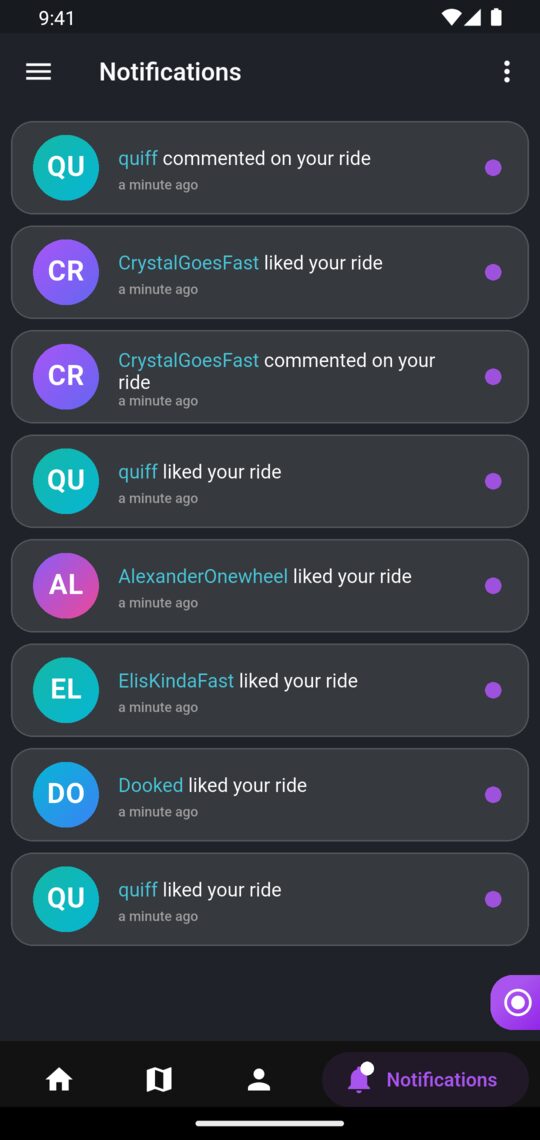
You get a notification when:
| What happened | You'll see |
|---|---|
| Someone follows you | "Started following you" |
| Someone likes your ride, trail, tune, comment or message | "Liked your …" |
| Someone comments on your ride, trail or profile, or on a season in a league you belong to | "Commented on your …" |
| Someone invites you to a squad or league | "Invited you to join …" |
New messages and rewards (badges, banners and credits) are notified separately. They don't appear in the notifications list.
In the app
- Notifications live in the Notifications tab. A dot on the tab means you have unread ones.
- Tap a notification to mark it read and jump to whatever it's about.
- To clear them all, tap the menu on the Notifications screen, choose Mark All as Read and confirm.
- Push notifications arrive on your phone too, if you allowed them. The first time you open the app it asks; tap Yes, notify me. If you said no, you can turn them on later in your phone's settings.
- When you earn a reward, a gift icon appears at the top of the Home tab. Tap it to see what you got.
On the website
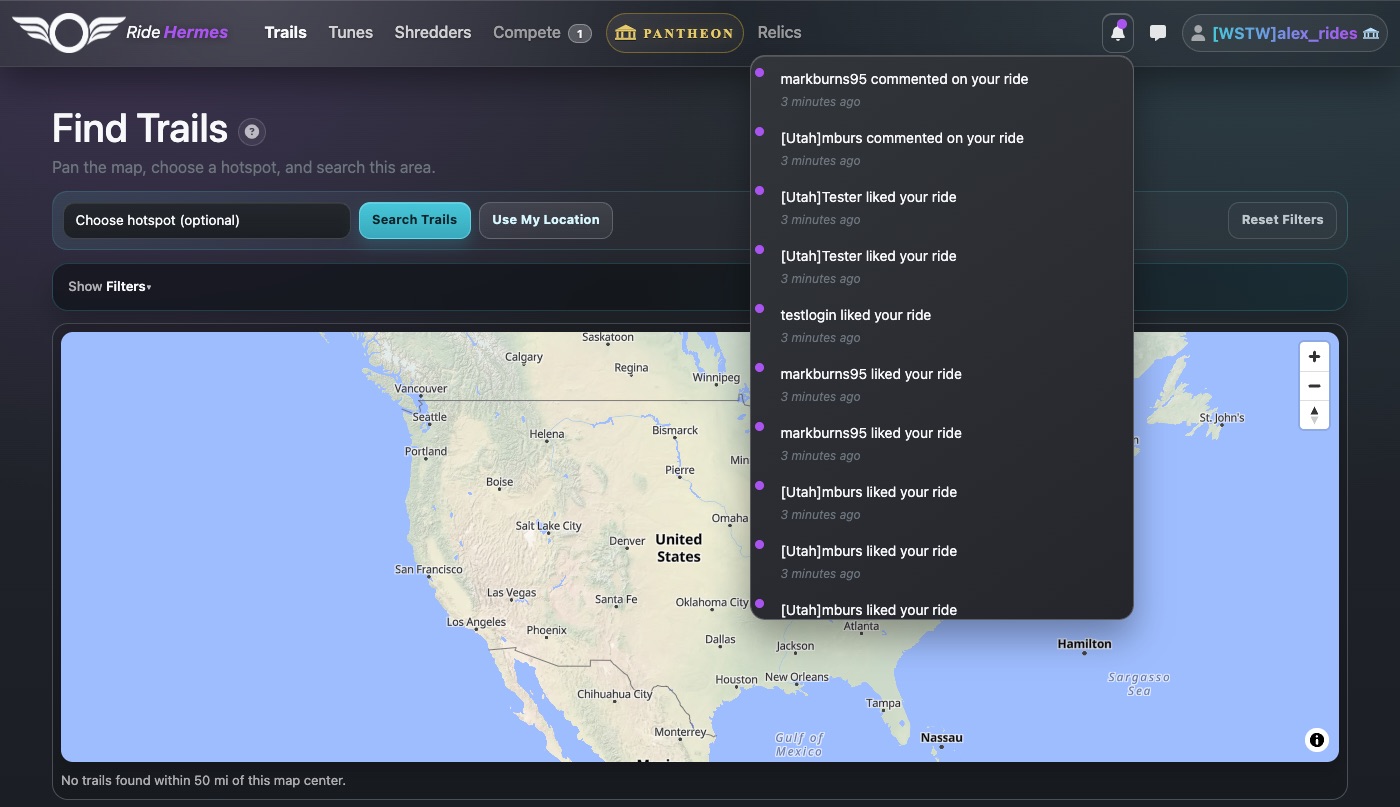
Click the bell in the top bar (it has a dot when something's unread). The list shows all your unread notifications plus your most recent read ones. Click one to open it and mark it read.