Squads
Ride as a team: create a squad, invite riders, and manage who is in it.
What a squad is
A squad is a team of riders who carry the same tag. Your squad's tag shows in front of your username wherever your name appears, for example yourname on trail and season leaderboards.
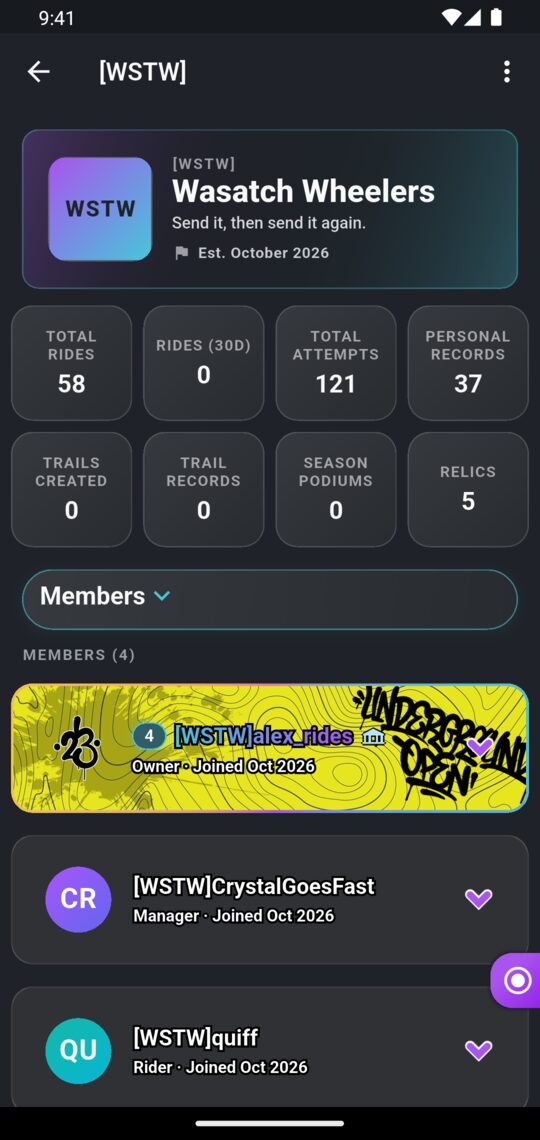
Every squad has a page with its logo, motto, roster and combined stats for its current members, such as total rides, rides in the last 30 days, personal records, trails built, current trail records, season podiums and total relics.
- You can be in one squad at a time.
- There's no limit on how many riders a squad can have.
- Anyone can view squad pages and see squad tags.
Who can create or join a squad
For Pantheon membersYou need an active Pantheon membership to create a squad, accept an invite, or manage one. If you cancel, you keep these powers until the end of the period you've already paid for. See The Pantheon Membership.
Creating a squad
For Pantheon membersIn the app
- Open the menu, and under Community tap Squads.
- Tap the ⋮ menu and choose Create a Squad. If you're not in a squad, you can also tap Create a squad on your profile.
- Fill in Name, Tag (3-5 characters) and, if you like, Motto (Optional).
- Tap Save.
On the website
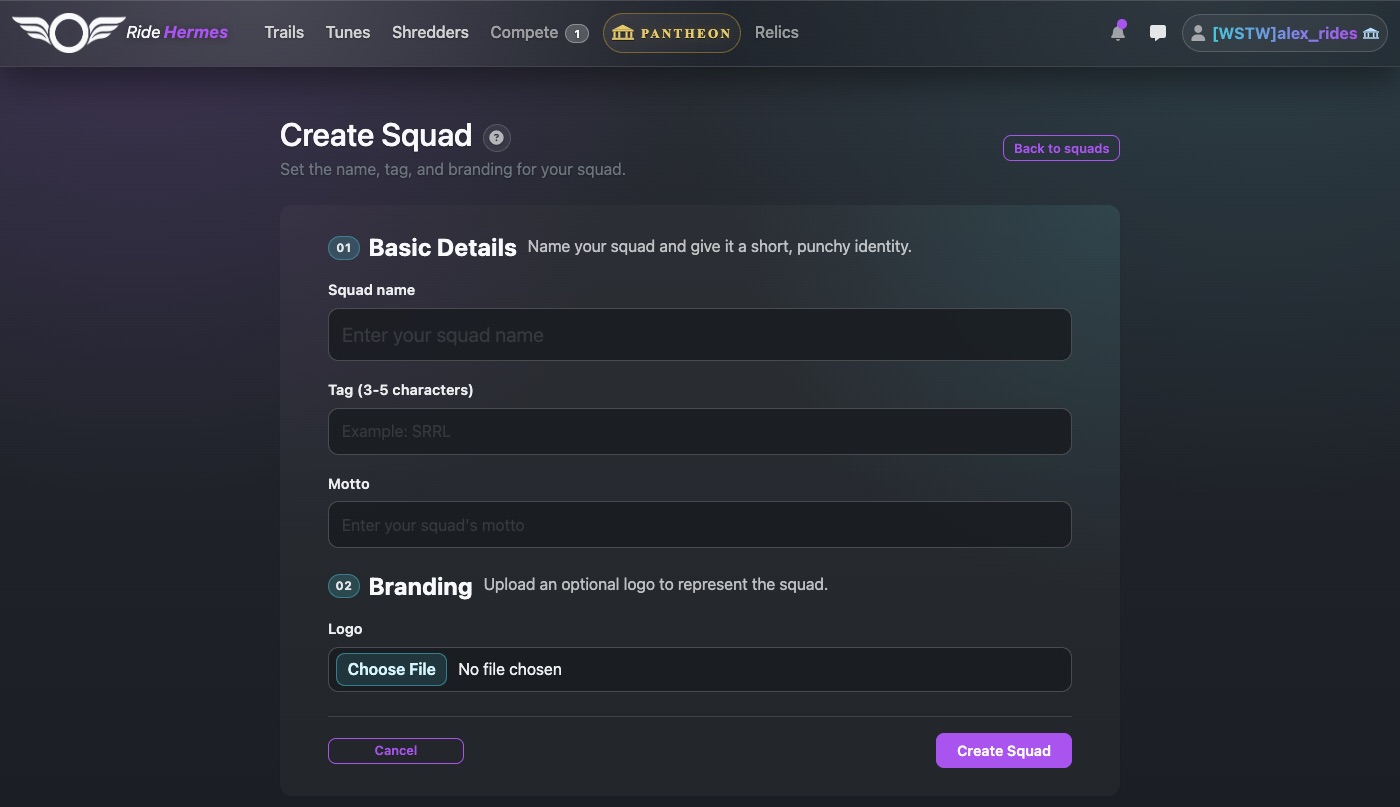
- Go to The Squads and select Form your squad.
- Fill in Squad name, Tag (3-5 characters), an optional Motto and an optional Logo.
- Select Create Squad.
Name and tag rules
- The name must be 4–30 characters and start with a letter. After that it can use letters, numbers, spaces, dashes, underscores and dots.
- The tag must be 3–5 characters.
- Names and tags must be unique, so if one is taken, try another.
You become the squad's owner automatically.
Inviting riders and accepting invites
You can only join a squad by invite. Squads have no open joining and no join requests.
Sending an invite
For squad owners and managers- In the app: open your squad, switch to the Invites page, search in Search riders to invite, and tap Invite.
- On the website: open your squad page. In the Manage Squad card, search under Invite Rider (at least 2 characters), then select Send Invite.
Invites you've sent appear under Pending Invites, where you can Revoke them.
Accepting or declining
When you're invited, you get a notification saying the rider has invited you to join the squad. Tap it to open the squad.
- In the app: on the squad's Invites page, under Your Invites, tap Accept or Decline.
- On the website: on the squad page, select Accept Invite or Decline. Members also see their invites under Pending invites on The Squads.
Roles
| Role | What they can do |
|---|---|
| Owner | Edits the squad, invites riders, changes anyone's role (including making someone else an owner), removes members and deletes the squad. |
| Manager | Edits the squad, invites riders and manages riders. Can't change or remove owners, and can't make anyone an owner. |
| Rider | Rides for the squad and carries the tag. |
Owners and managers change roles from the squad's member list: the role chips in the app, or the Role dropdown and Save on the website. Select Remove to take someone off the roster.
Leaving or deleting a squad
Leaving
- In the app: on the squad's Members page, expand your own card and tap Leave Squad.
- On the website: select Leave Squad on the squad page and confirm.
On the website, owners can't leave their own squad. Make someone else an owner, or delete the squad instead.
Deleting
For squad owners- In the app: open the ⋮ menu on your squad, tap Delete, then confirm.
- On the website: open the squad's edit page, select Delete, then confirm.
If your membership lapses
Your squad isn't deleted, and you stay on the roster with the same role. But until you renew:
- You can't accept new invites.
- Owners and managers can't edit the squad, send or revoke invites, or manage members.
- You can't leave the squad yourself.
Renew to get these back. If you need to leave while your membership has lapsed, ask an owner or manager to remove you, or email support@ridehermes.app.