Trails & Leaderboards
Find trails, race them for time, read the leaderboards, and create trails of your own.
Finding trails
A trail is a stretch of path with a start gate and a finish gate. Riders race it for time. Riders create trails all over the world, and you can browse them in the app or on the website.
In the app
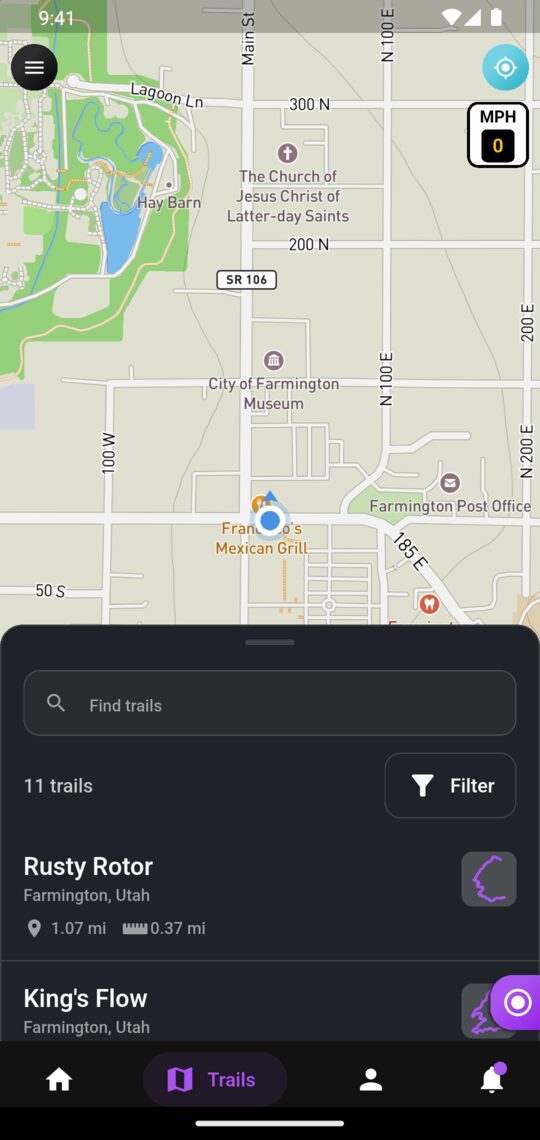
- Tap the Trails tab. You'll see a map of trails around you, with a list of the trails on screen in a sheet at the bottom.
- Pan and zoom the map to explore. When you're zoomed out, nearby trails are grouped together. Tap a group to zoom in.
- Type in the Find trails box to search by name. If nothing on screen matches, the app also searches further afield.
- Tap Filter to narrow the list by Ratings (difficulty), Categories or Length. Active filters show as chips you can tap to remove.
- Tap a trail on the map, or in the list, to see a preview with its length, riders, attempts, description and photos. Tap View to open the full trail page, or Directions to get there.
Trail lines are colored by difficulty, and busier trails (ridden more in the last 30 days) are drawn brighter.
On the website
- Go to Trails (it's in the top menu).
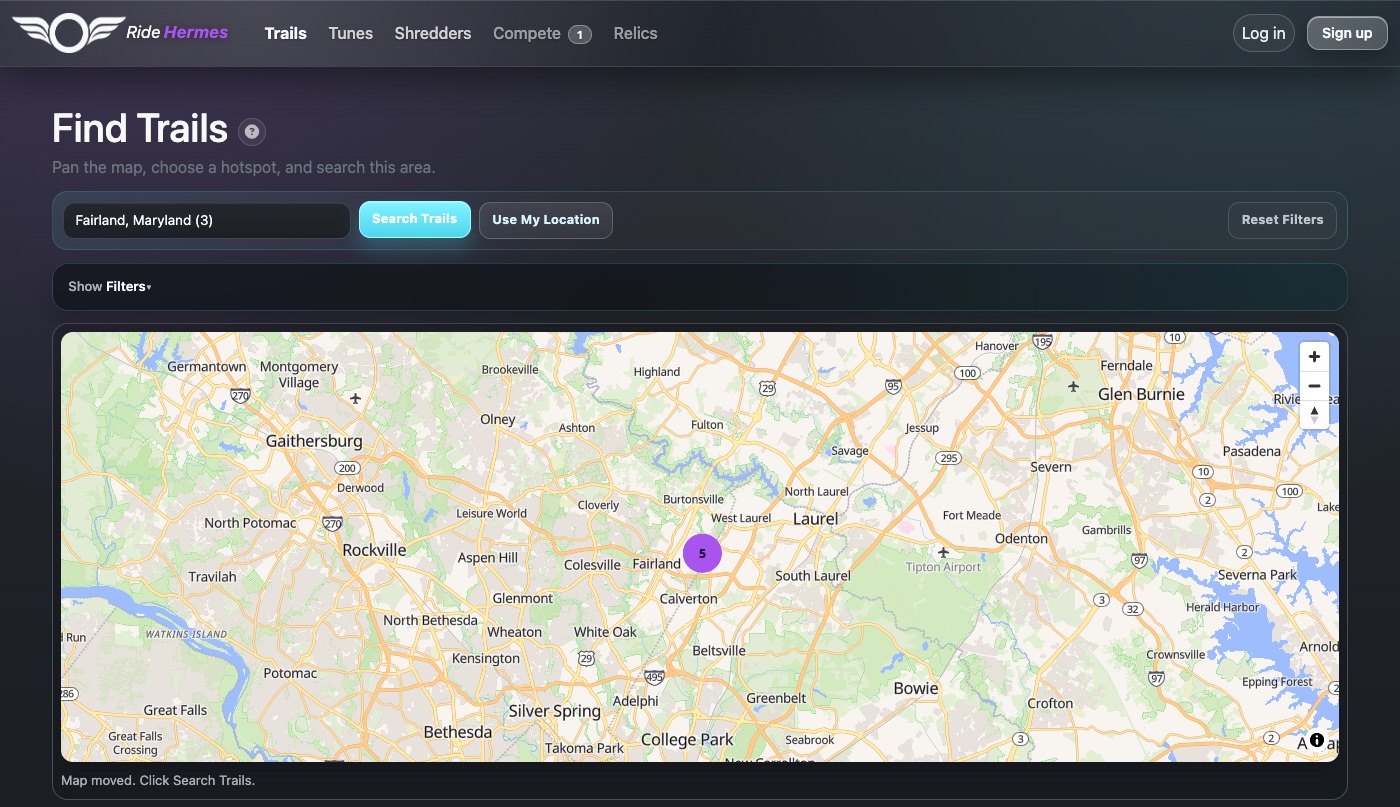
- Move the map to an area, or choose a hotspot from the dropdown, then click Search Trails. Click Use My Location to search around you.
- Open Filters to search by name or place, filter by Category or Difficulty, change the Sort (Closest, Popular, Newest, Name), or tick Active seasons only, Trails with attempts or Trails I rode.
The website searches about 50 miles around the map. If it finds nothing, it widens the search automatically.
The trail page
Each trail has its own page with everything you need to race it:
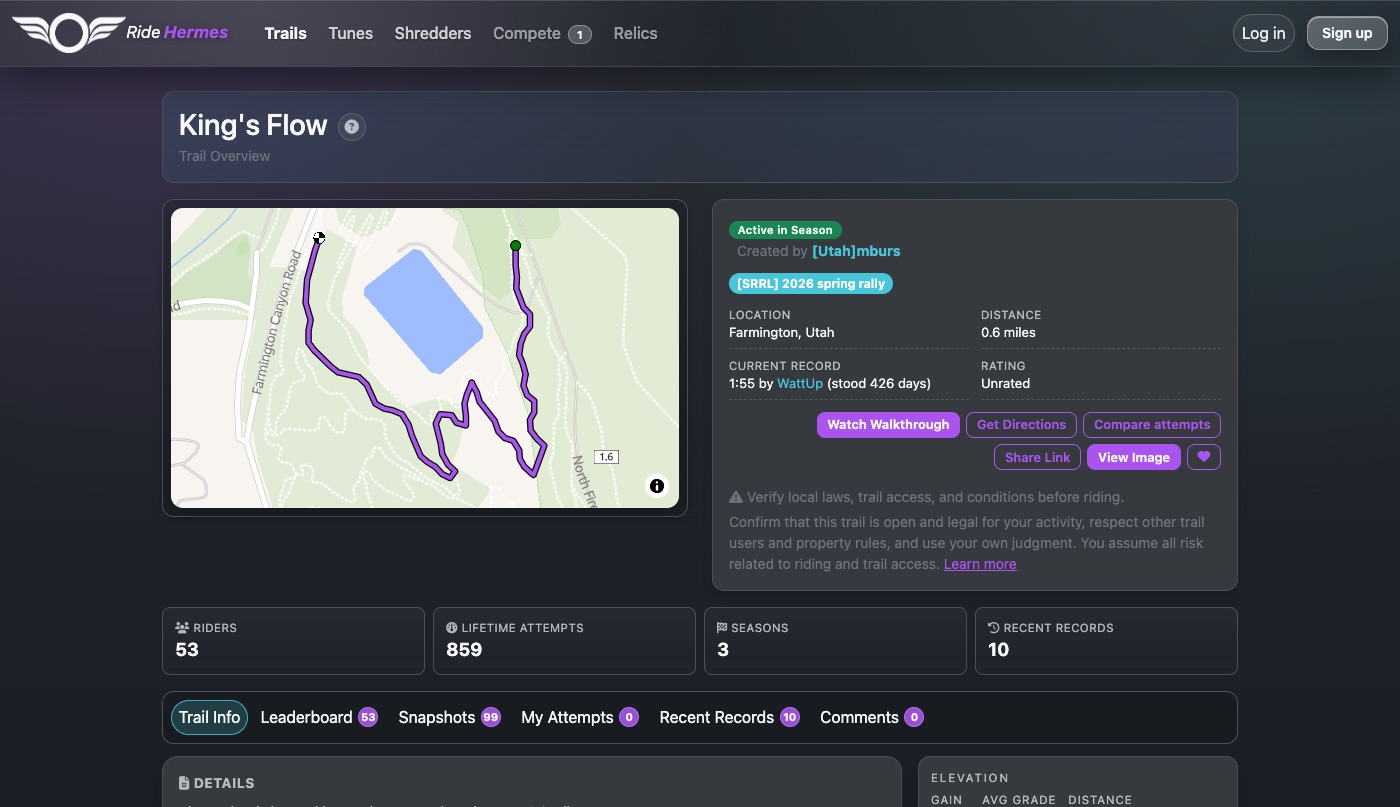
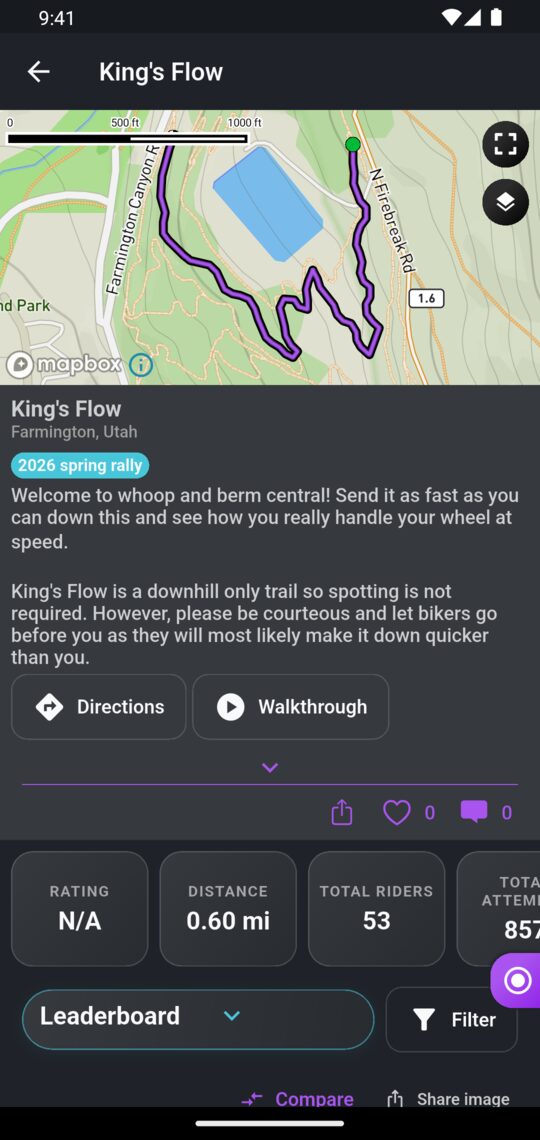
- Details: the route on a map, location, distance, difficulty rating, categories, description, and any seasons the trail is part of.
- Start and finish: notes and photos showing where the gates are, plus directions from parking. Use Directions (app) or Get Directions (website) to open Google Maps.
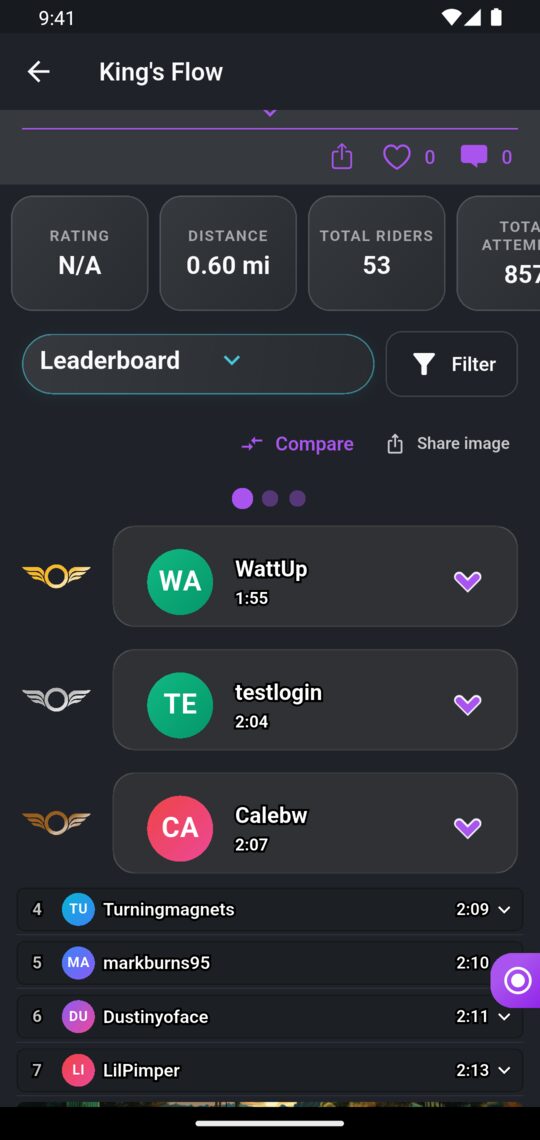
- Leaderboard: the fastest time for each rider. See how leaderboards work.
- My Attempts: every attempt you've made on the trail, fastest first.
- Recent Records: the latest personal bests riders have set on the trail.
- Snapshots: how the leaderboard has changed over time (Pantheon members).
- Comments and likes: chat about the trail and show it some love.
In the app, switch between Leaderboard, My Attempts, Recent Records and Snapshots using the dropdown above the list. Tap the arrow on a row to see the rider's average speed, vehicle and date, and to open their ride.
The website's trail page also has a Your trail panel (your PR, rank, attempts and when you last rode it), an Elevation chart with gain and average grade, and the current record and how many days it has stood.
How an attempt counts
You don't need to do anything special to race a trail. Record your ride as normal (see Recording Rides). Once the ride uploads, Hermes checks it against nearby trails in the background and adds an attempt for every trail you completed. It can take a few minutes for attempts to appear.
For a run to count as an attempt, your GPS track has to:
- Pass close to the trail's start gate.
- Follow the trail's whole line. A few missed GPS points are allowed, but not a skipped section.
- Pass close to the finish gate, after the start.
Your time runs from the moment you pass the start gate to the moment you pass the finish. If you ride the trail several times in one ride, each lap can count as its own attempt.
Why an attempt might not show up
- You started or finished too far from the gate, for example by starting partway down the trail.
- You left the line or took a shortcut.
- Your GPS dropped out or was very inaccurate for a long stretch. Keep your phone's location on and the app recording the whole time.
- You rode it the wrong way: the start gate has to come before the finish.
- The ride hasn't uploaded yet. Check for pending rides in the app's side menu.
Hidden rides and hidden attempts don't appear on leaderboards. On the website, open your ride, find the attempt in its Trails section and click Edit to hide or delete it.
How leaderboards work
- One time per rider. The leaderboard shows each rider's single fastest attempt. Your slower runs stay in My Attempts.
- Fastest time wins. Riders with exactly the same time share a rank, and the next rank is skipped (for example 1, 1, 3).
- Filters. Narrow the board by Gender, weight class or Vehicle Class. The weight filter is called Weight on the website and Weight Class in the app. Weight class uses the weight in your profile, and vehicle class uses the vehicle on that ride, so keep both up to date.
- Seasons. If the trail is part of a season, pick it under Choose Season on the website, or Season in the app's filters, to see only attempts made during that season. The default is Lifetime.
Your place on trail leaderboards also feeds your rider rating. See Shredders & Rider Rating. For season standings, see Seasons, Leagues & The Underground.
Leaderboard snapshots
For Pantheon membersA snapshot of each trail's top 100 is taken every day someone rides it. The Snapshots view charts how riders have climbed or dropped over time. Tap or click a rider to highlight them, and pick a date to see the full standings on that day.
Other riders see how many snapshot days and riders are tracked, with a preview, and can join the Pantheon to unlock the full history. See The Pantheon Membership.
Comparing attempts
For Pantheon membersThe Trail Comparer lays attempts side by side so you can see exactly where you gain and lose time.
- In the app, tap Compare above the trail's leaderboard. On the website, click Compare attempts on the trail page, or Compare next to an attempt on a ride.
- It starts with the trail record and your best time. Add more attempts by picking a rider and one of their runs.
- The map and charts show each rider's gap to the anchor rider, and their speed, along the trail. Press Play, or drag the chart or map, to scrub along the route. The Biggest gaps list shows where the most time was won or lost.
- In the app, tap a rider's chip to focus on them, make them the anchor, or remove them. On the website, use Share to send a link to the comparison.
Sharing a leaderboard
- In the app, tap Share image above a trail's leaderboard. It makes an image of the leaderboard, with your current filters, for you to post anywhere.
- On the website, click View Image on the trail page to open the same leaderboard image, or Share Link to share the trail page.
- In the app, the share button by the like and comment buttons shares a link to the trail.
Creating and editing trails
Any rider can turn a stretch of one of their own recorded rides into a trail. Ride the trail first, from start gate to finish, and record it.
In the app
- Open your ride and find the Carve a trail from this ride card. Tap Create.
- Drag the two handles to set the start and finish. Use the − and + buttons to move each end one GPS point at a time.
- Fill in the name (required), description, Difficulty, Categories, start and finish Photos, Location, and optionally a walkthrough video link and parking notes.
- Tap Create trail.
To change a trail you created, open it, tap the ⋮ menu and choose Edit. You can move the start and finish, change the details and swap the photos, then tap Save changes. To delete it, open the ⋮ menu while editing and choose Delete trail. A trail that's part of a season can't be deleted.
On the website
- Open your ride and, under its Trails section, click Create a Trail. You'll only see this on your own rides.
- Use the arrow buttons under Start Point and End Point to move each end of the trail along your ride.
- Fill in the name, start and end descriptions and pictures, trail description, video link, location, parking, directions from parking, Rating and categories, then submit.
To edit a trail you created, click Edit Trail on its page. The edit page also has a Delete button.
The website is currently the only place to add start and end point descriptions and directions from parking.
Precision settings
Both forms have advanced Precision (the body of the trail) and Gate Precision (the start and finish) settings that control how closely a ride has to match the trail. Leave them at 0 unless lots of real runs aren't being picked up. After you change the route or precision, give attempts a little while to reprocess.